
Building a Chrome Browser Extension Is Super Easy With AI
Introduction
This is quick guide on how to build a Chromium browser extension with AI, even if you have no coding experience.
Have you ever wanted to do something online, searched the Google Chrome store for a browser extension to help you, only to end up disappointed that no-one had created a browser tool that would fit the job.
That was me, I wanted a scrape data for marketing research from Reddit posts, and I knew there was a better way than manually copying and pasting – I just had to find a way to tap into the page code to copy the posts in somehow. If only I knew how to code, then I could create it myself, but who’s got time for that?
Well, as it turns out, it’s super easy when you just use AI to help you do it. I’ll explain how I used Claude to help me create my Reddit Scraper Chrome Extension (free to download form the Google Chrome Store), but you can just as easily use Google Gemini, ChatGPT, or any other AI LLM.
How to Build a Chrome Browser Extension With AI (3 Simple Steps)
What you’ll learn:
- Why building browser extensions are a great way for beginners to develop basic coding skills
- How to brief an AI chatbot to create extension code
- How to run your extension in Chrome Developer Mode
- How to debug and refine until it works perfectly
No coding experience required. This process only takes 2-3 hours when you are a beginner and even less time once you know what you are doing.
Why Browser Extensions Are Perfect for AI-Assisted Development
If you want to get started with using AI to help develop a coding project, but you don’t know much about coding yet, then browser extensions are the perfect place to begin.
The tech stack is pretty simple, it’s really just a combination of HTML for structure, CSS for styling, and Javascript for functionality – so there isn’t too much to deal with. Browser extensions tend to have a pretty clearly defined functionality – which is helpful for AI as it keeps everything focused, and because the are straightforward then testing and debugging can be done quite quickly.
And best of all, you can completely tailored for your own specific use case and you don’t have to worry if the add-on has some sort of virus or won’t be maintained, because you are the one that made it, with a little help from your robot friend of course.
Understanding the Basics: What You Need to Know
A browser extension is just a small application that runs inside your browser. Website code is located on a web server and you use your browser to access that over the internet and read the website – but extensions live on your device, in you browser folders, and interact with the websites you visit when you run the extension.
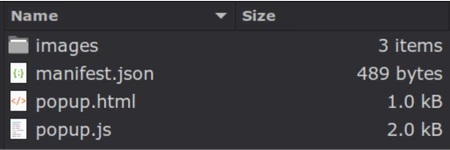
Every extension is made up of three core files that work together:
- manifest.json – the set of instructions for the extension.
- popup.html – the visual element that users see when they click on the extension icon.
- popup.js – the code that runs when users click the buttons.
That’s all there is for functionality, but if you open up an browser extension folder, you’ll probably also see an images folder with icon images. This is optional, it just makes things look nice, but most extensions will have it.
There’s a bit more to it than that from a technical point of view if you want to dig into it more, but for a beginner using AI to create a browser extension, that’s everything you need to know to get started.
Step 1: Define the Problem You Want to Solve & Brief AI Clearly Before Building Your Extension
Start with the problem you want to solve – for me it was finding a quick way to download Reddit post titles and subreddit conversion threads.
Then provide a detailed description of what your current difficulty is and what you want the AI to help you to create. The more details you can provide and the more guidance about what output you want the better.
Don’t make the common mistake of just asking the AI for a browser extension that scrapes Reddit for instance. You need to provide guidance and give examples of what you want.
Step 2: Building Your Extension and Adding It To Your Browse
The AI will give you the code you need. All you have to do is create a folder on your computer, give it the name you want to use for your extension, copy the code for each of the 3 files (manifest.json, popup.html, and popup.js) and save each of them into a text file, with those file names and extensions.
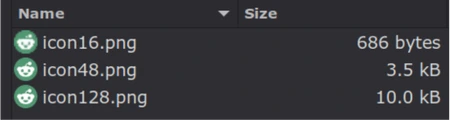
I also created 3 image files for my browser icon.
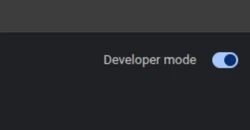
To run the extension, you’ll need to add it to your browser. So, go to your browser settings, find Extensions/Manage Extensions and turn on the Developer Mode toggle (usually top right on the browser).
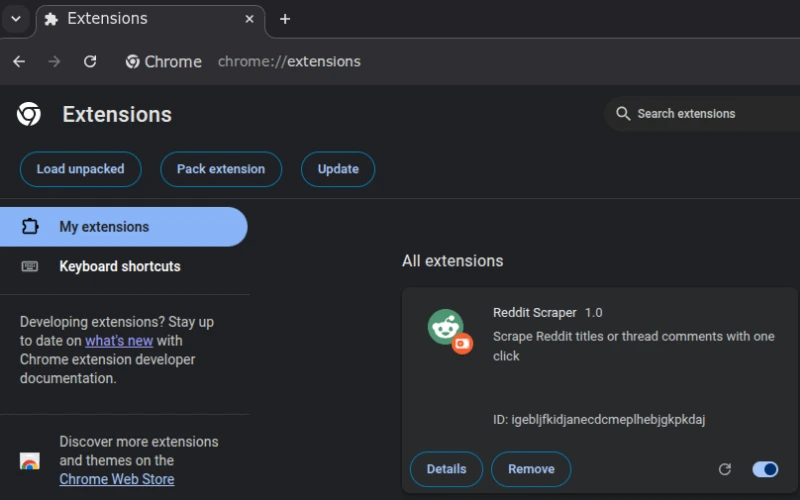
Then select Load Unpacked, where you’ll be open the extension folder on your computer, and just select the folder. I’d also suggest pinning the extension so it appears amongst your extension icons and is easy to find.
Step 3: Debug & Refine Your Extension Until It Works Properly
Now we need to test the extension to make sure it works as intended. It’s unlikely that everything will function exactly as you envisaged straightaway, so it might take a few iterations before you get it just right. All you go is ask your AI to refine the code based on your feedback, refresh the code files on your computer, unpack the refreshed set of files in your browser, and test again. Repeat until you are happy with the functionality.
You will likely have to take a look in the website source code to find out how the website is coded and how the browser is interacting with it. Don’t worry too much about that, you just right click on a webpage and select ‘Inspect’, and get your chatbot to guide you on what info it needs to make a second draft version. This is the most time consuming part and it might take a bit of back and forth troubleshooting the functionality until you get your extension to work just the way you want it.
It took me about 2 hours and 7 different iterations before I was happy with how everything worked. And this was having never created any extensions to having done any coding before, so if I built a second extension, it would probably take half that time.
Optional: Publish Your Extension to the Google Chrome Store
Once you are happy with how your extension works, you can add it to the Google Chrome Webstore, so anyone can use it. There is a $5 fee to register as a developer so you can upload extensions. I presume this is required to discourage bots and scams, and you will need to provide some info about the extension so people know what it is about and can find it in search. You can link back to you website, so it’s probably worth the $5 for a decent backlink. But, this optional obviously.
You can find my Reddit Scraper Chrome Extension in the Google Chrome Store – it’s free to use, and you can leave a review too – hopefully you’ll find it useful.